Cloud & SQLSailor

Cloud, Databases & Beyond!

,

SQL Server 2014 Install – Step by Step


Hot cake for the day is SQLServer 2014 RTM bits. Its generally available starting today, and I downloaded a fresh copy to start testing it.

I will be writing a separate post on the features I love about SQLServer 2014,but here is the step by step install process for a standalone install.

There are no changes for the GUI based install process when you compare with SQLServer 2012,but one thing I’m pretty sure that the installer is sleek and faster.

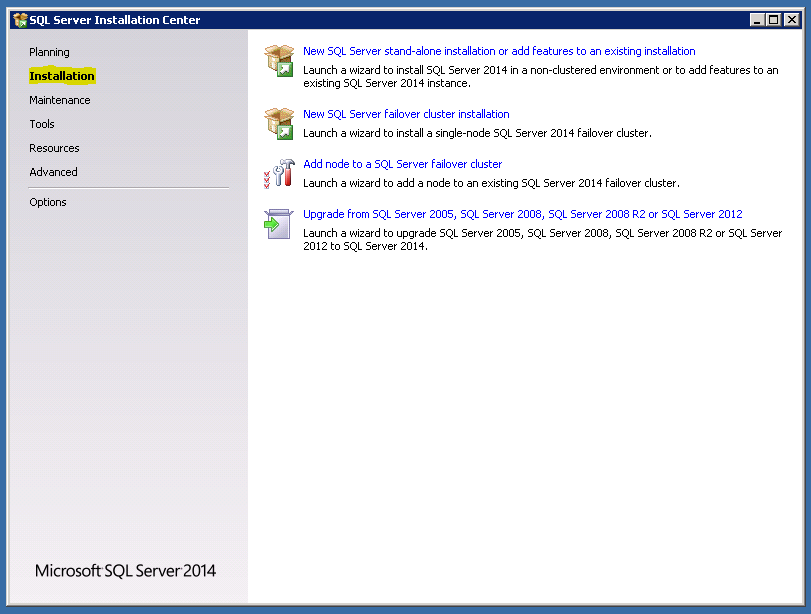
Step 1  – The landing page looks pretty similar to the earlier versions, and you can choose the installation tab to get things started.
SQL2014 RTM Install1

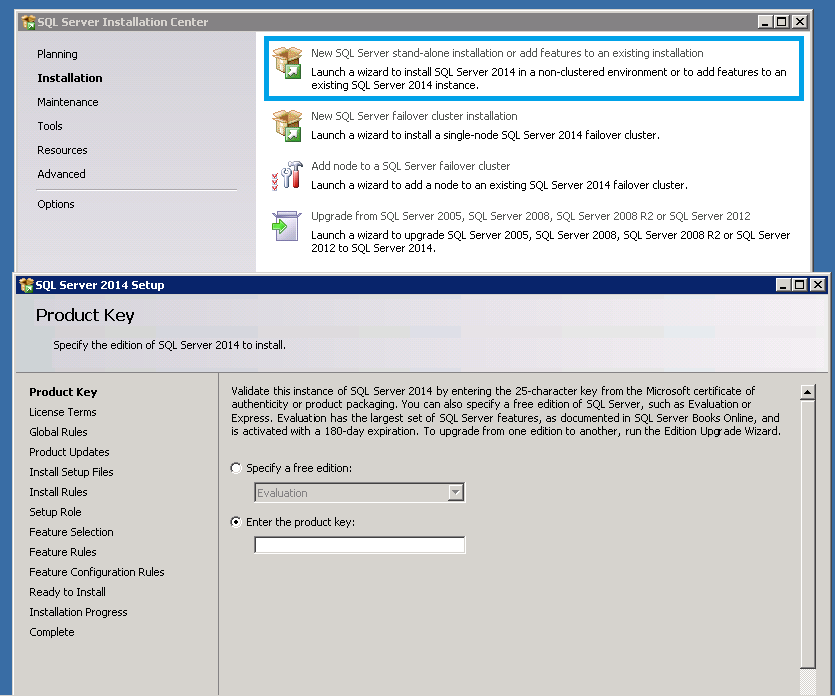
Step 2 – Choose the stand-alone install option, and it will take you to the product key page.
SQL2014 RTM Install2

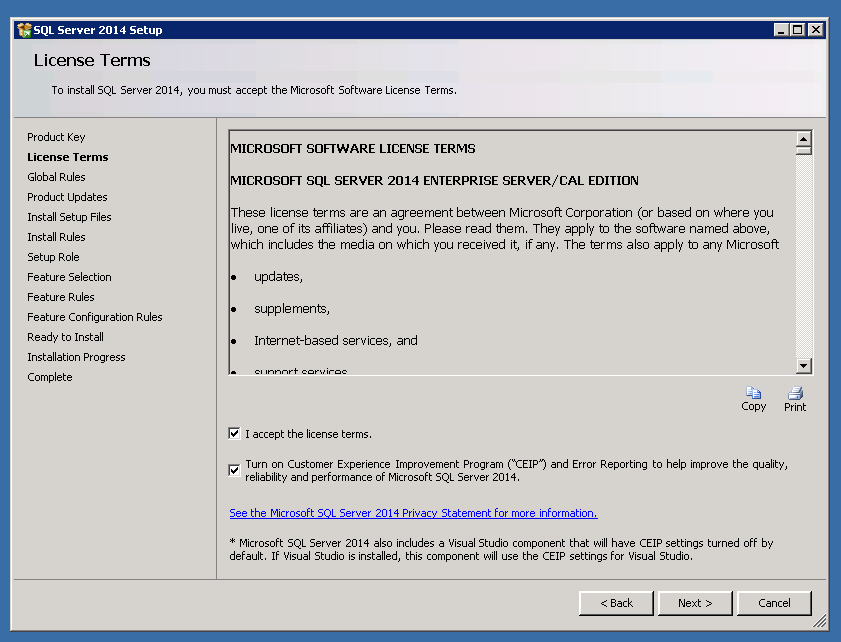
Step 3 – This screen is where you need to accept the license terms. There is also an option to turn on select Customer Experience Improvement Program and Error Reporting.
SQL2014 RTM Install3

Step 4 – 6 These are the steps where Global Rules, Product Updates are checked and Setup files are extracted and installed. If the checks are good, then the install will proceed to the next step automatically.
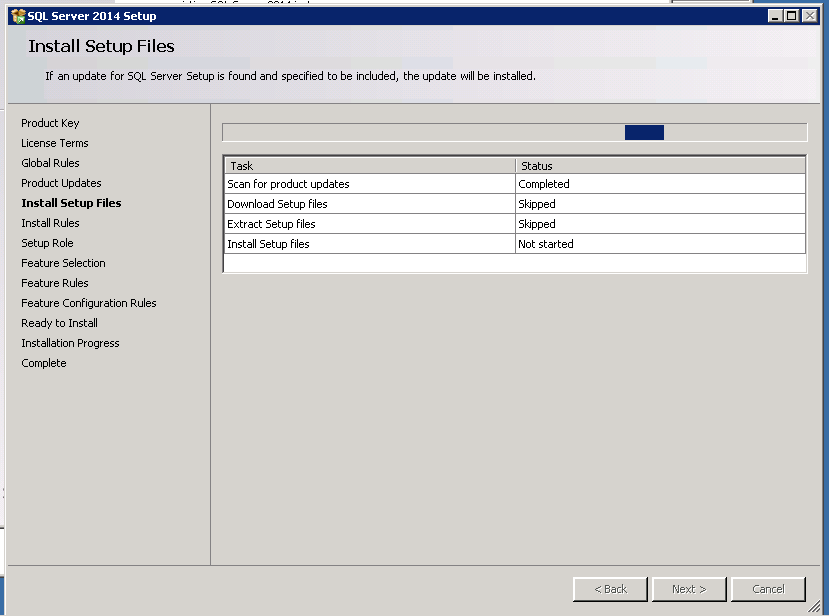
SQL2014 RTM Install4

Step 7 – Install rules are checked for this step, and I have highlighted a check which was interesting to me.
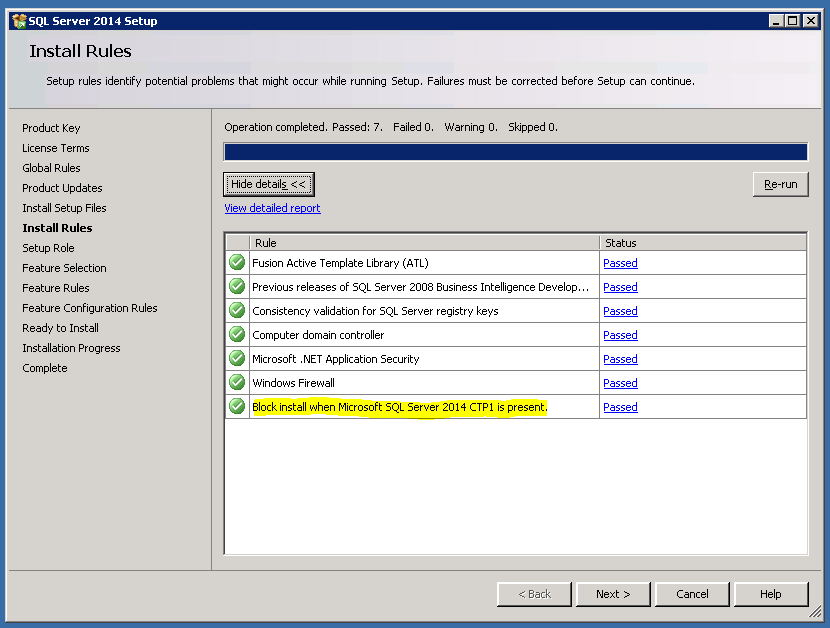
SQL2014 RTM Install5

 Step 8 – This step provides you with Feature installation options. In this install I will discuss about the first option, ie SQLServer Feature Installation.
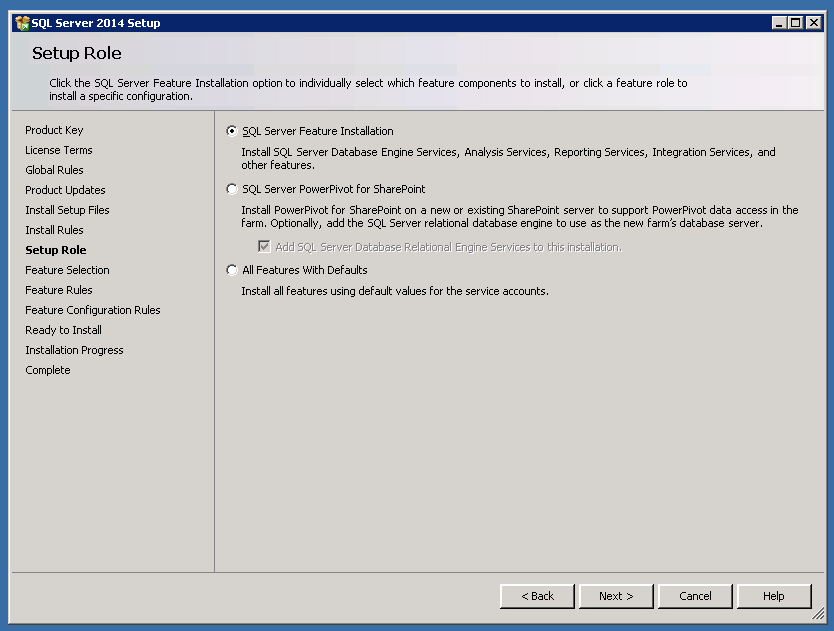
SQL2014 RTM Install6

Step 9 –  This step is where you will select the features. I’m choosing only those ones which I need for my testing.
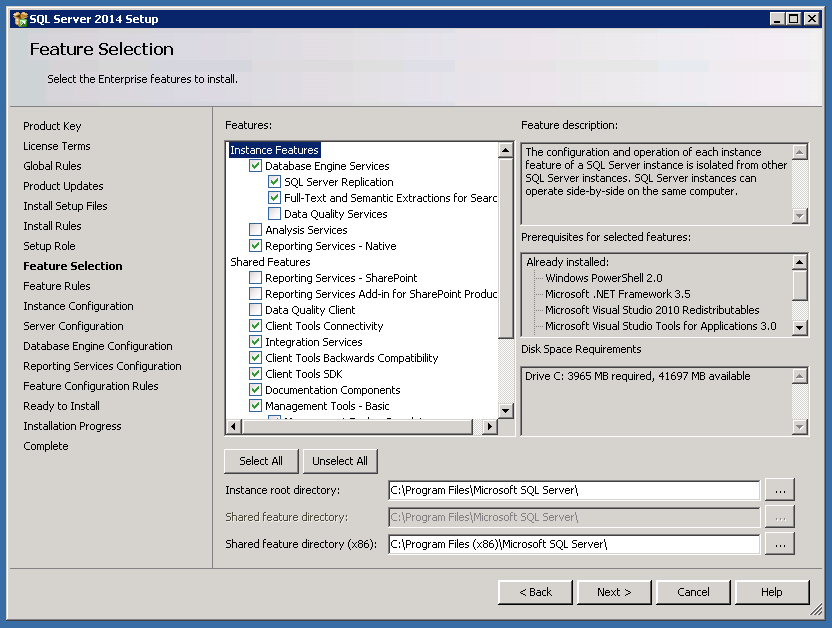
SQL2014 RTM Install7

Step 10 – This step lets you decide if you want to go with Default Instance or a Named Instance.
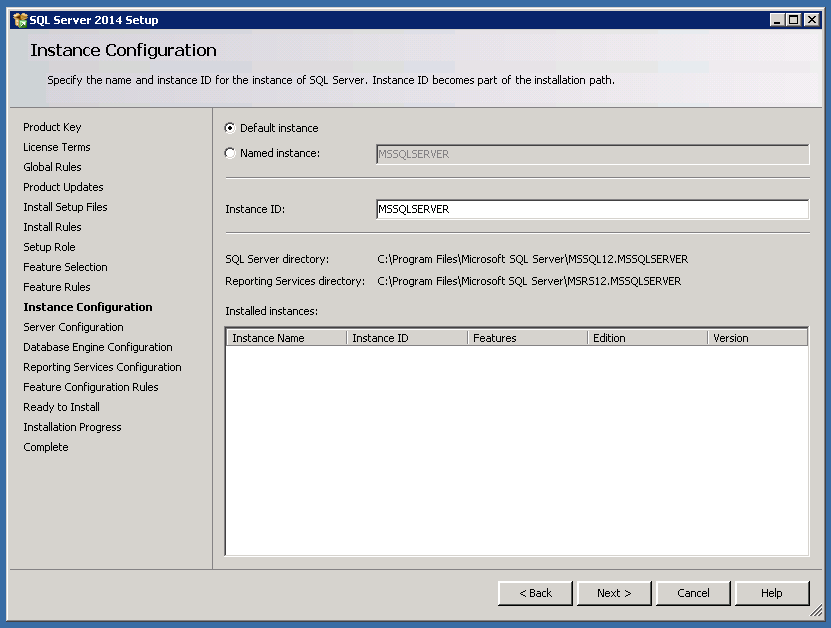
SQL2014 RTM Install8

Step 11 – This step lets you select the account for the services. I’m choosing all defaults as that’s good for my test lab.
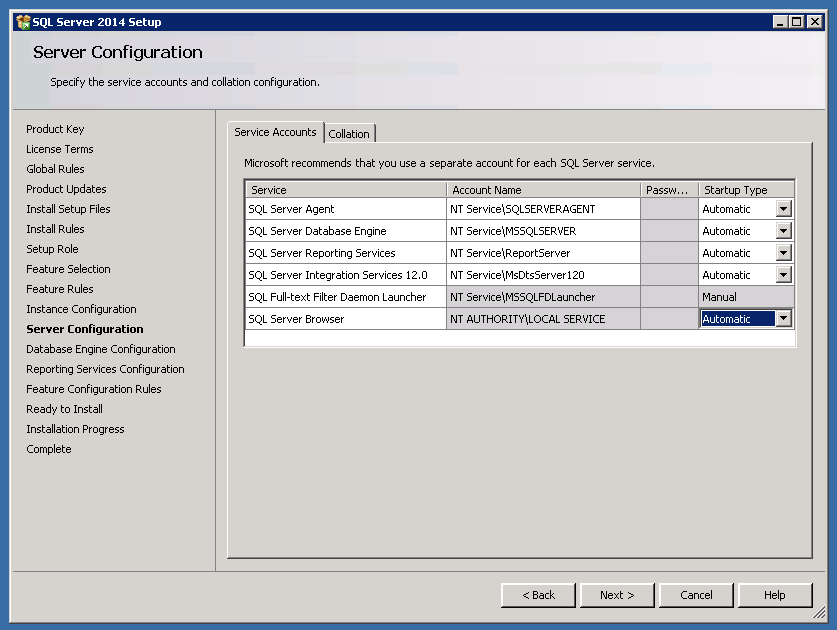
SQL2014 RTM Install9

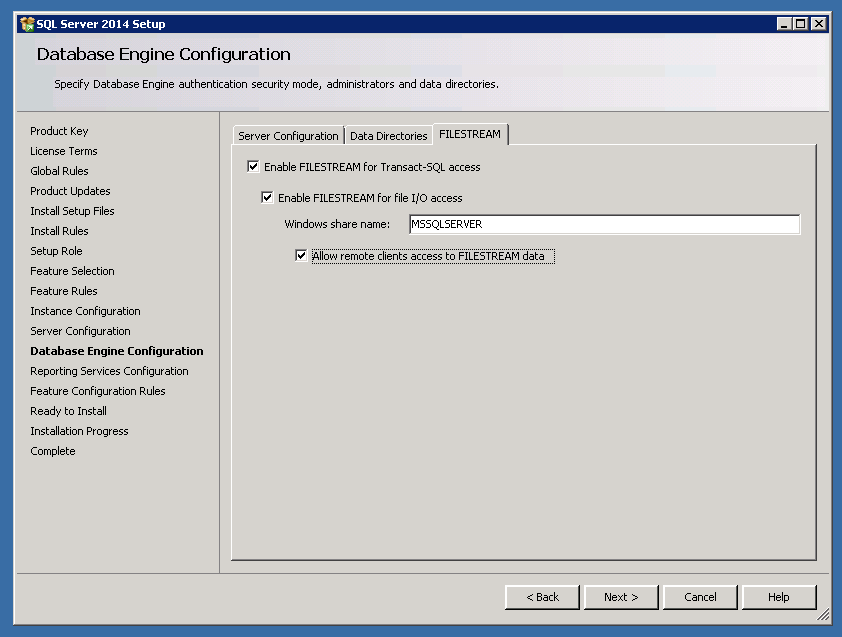
Step 12 – This step lets you choose the Authentication mode, Data directories, and File Stream options.
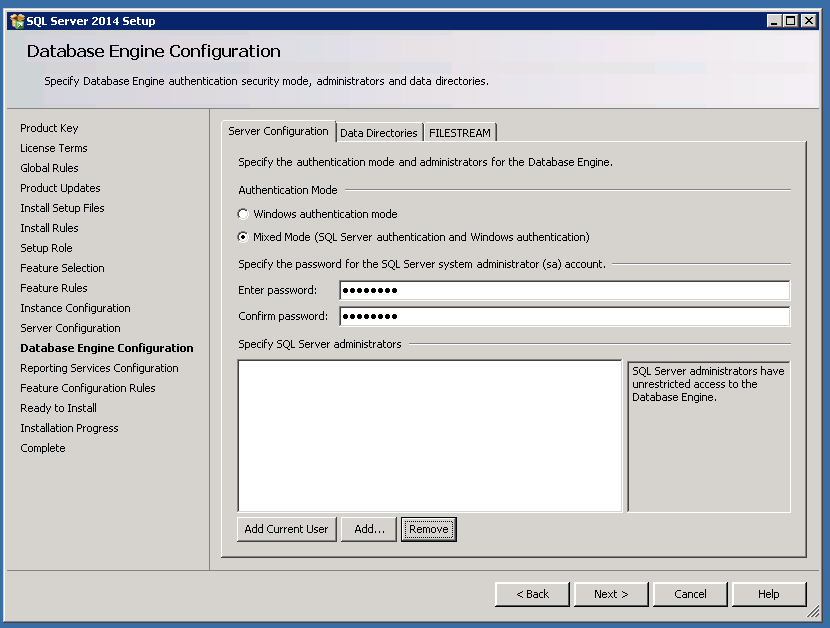
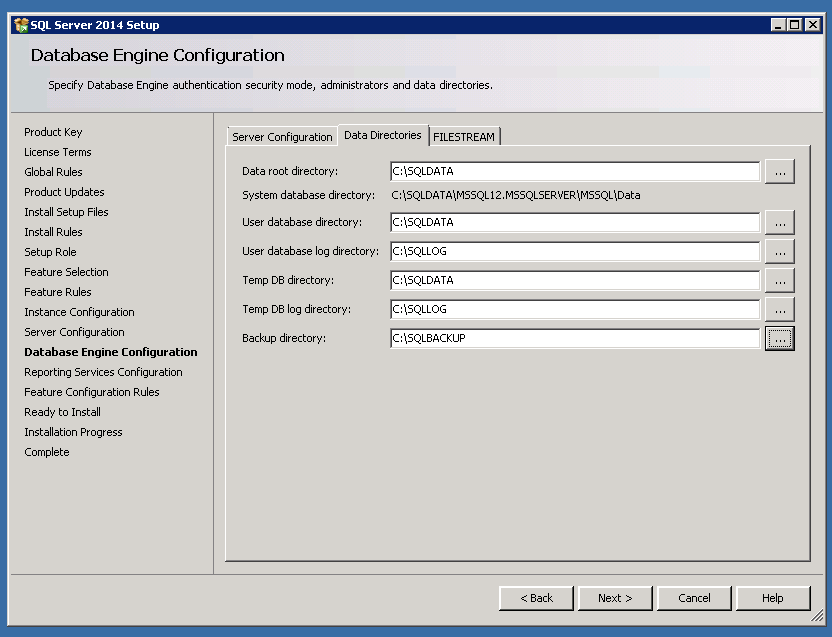
SQL2014 RTM Install10 SQL2014 RTM Install11 SQL2014 RTM Install12

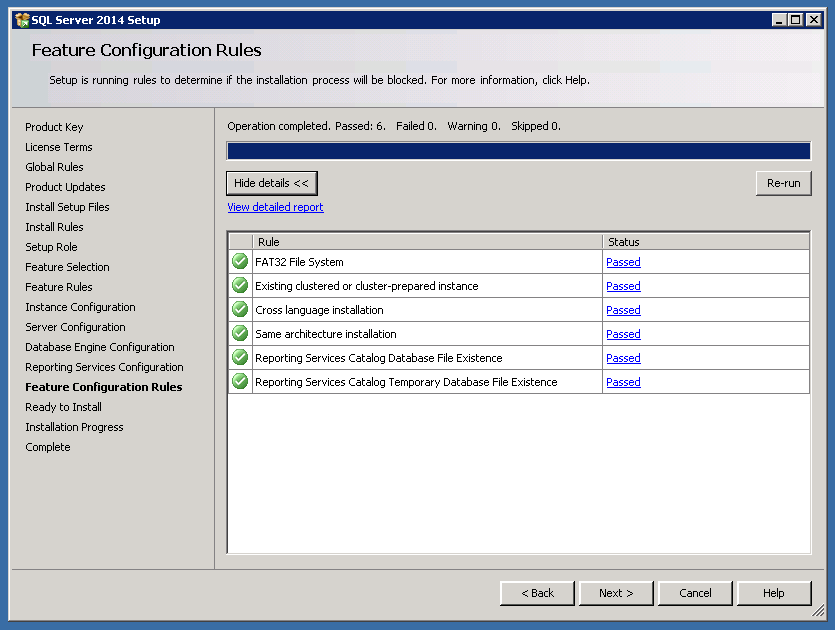
Step 13 – Feature Configuration Rules step. As mentioned earlier if the checks are fine, setup automatically proceeds to the next step.
SQL2014 RTM Install13

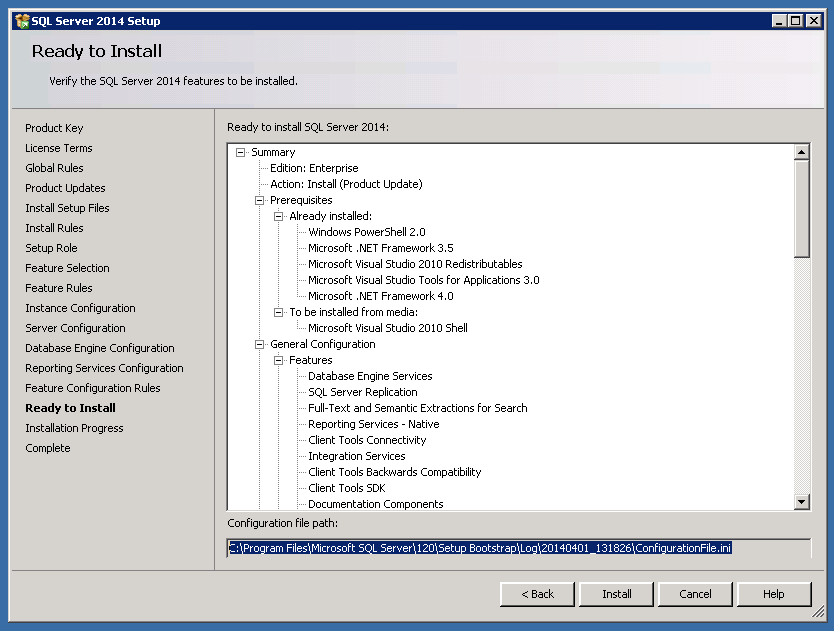
Step 14 – This is the final step of the installation, and you can pick the ConfigurationFile.ini from the path

C:\Program Files\Microsoft SQL Server\120\Setup Bootstrap\Log\Date_Time\ConfigurationFile.ini
SQL2014 RTM Install14


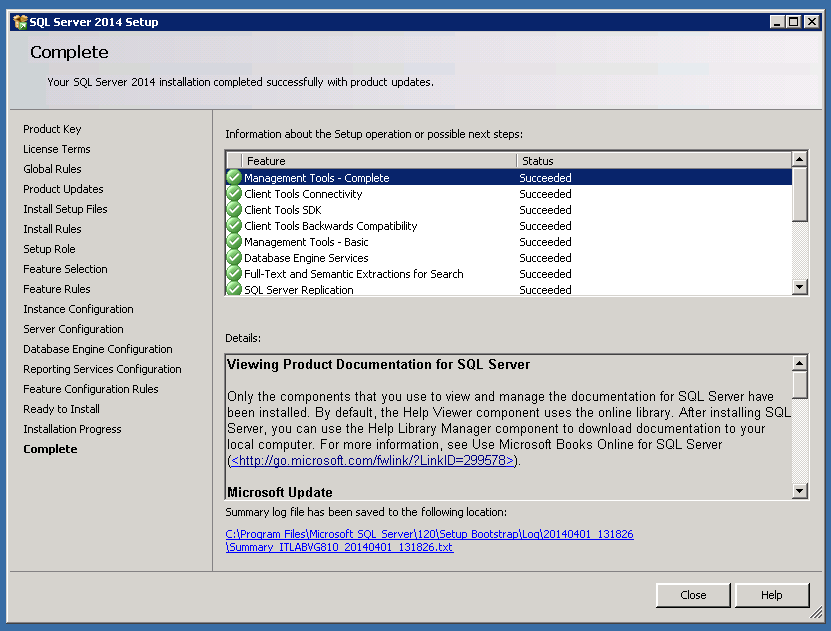
If everything goes smooth, your install will succeed.
SQL2014 RTM Install15

I’m really excited about some real good features in SQLServer 2014,and I will be writing about them during the next couple of days.

Thanks for reading and keep watching this space for more !


20 responses to “SQL Server 2014 Install – Step by Step”

  1. Markus Avatar

    Looks almost exactly like SQL2012. Can’t wait for your forthcoming articles on SQL2014.

    1. Anup Avatar

      Sure,There are lot many coming in the next few days 🙂

  2. Frank Avatar

    I want to read even more things about it!

    1. Anup Avatar

      Sure,keep watching this space..I have lot to write !

  3. farah nasir Avatar
    farah nasir

    please sir also make blog removing sql server step by step

    1. AnupWarrier Avatar

      Thats very easy and straight forward process. Please Google/Bing that to get more details.

  4. farah nasir Avatar
    farah nasir

    thanx

  5. farah nasir Avatar
    farah nasir

    can we install SQL server on Ubuntu
    If yes please provide link

    1. AnupWarrier Avatar

      No, you cannot. SQLServer runs only on Windows Platform.

  6. abdul manan Avatar
    abdul manan

    thanks AnupWarrier for completed install SQL in my PC .:)

    1. AnupWarrier Avatar

      Thanks for the feedback!

  7. Arya Avatar

    everythings goes fine while installing sql server 2014 but when i tried to connect to local database engine there is error msg, i can’t login to sql database how can i resolve this problem please help me

    1. AnupWarrier Avatar

      You have to ensure that right selections are made for the authentication option during setup.

  8. Daisy Avatar

    I am unable to see option 2 to install SQL Serve ron a cluster environment. Please advice what to do

    1. AnupWarrier Avatar

      You have to chose the option ‘New failover cluster installation’

  9. eugene Avatar
    eugene

    what can i do, when i can’t select anything in feature selection (everything is checked, but i can’t change it) but i can’t go on, due to this error message: “there are validation errors on this page. click ok to close this dialog box. review errors at the bottom of the setup page, then provide valid parameters or click help for more information.”

    the error at the bottom reads: “to continue, select a feature to install. if all features are already selected, these features are installed. you cannot add additional features.”

    i’ve uninstalled sql management studio 2014 before, maybe i forgot sth?

  10. Vijender Kumar Avatar
    Vijender Kumar

    Hi, Can you share the file link from where i can download the same and install it in my machine.

  11. Abhay Avatar

    if i am stall sql server 2012 my system but i want to instsall 2014 it can be install or not

    1. AnupWarrier Avatar

      You can install a named instance if your 2012 was default

Leave a reply to Frank Cancel reply