SQLServer2012 virtual launch was a great event, and I am still preparing a lengthy blog post on my experiences with the event.
One of the sessions about File Table functionality in SQLServer 2012 attracted me a lot and couldn’t resist writing about the same soon before I publish the overview of the launch.
The session was presented by Michael Rys (@SQLServerMike) who is a Program Manager with SQL Server Engine team. All the code which I use in this post is after referring his session and the credit purely goes to him.
What is a File Table ?
File Tables are those special tables which can be used to store your files and documents and access them from windows application as if they are stored in the file system. File Tables are built on top of File Stream feature.
Read more about File Table here
File Tables have got a pre-defined schema and structure.
Example – I have created a file table called Documents, and by default the available columns are –
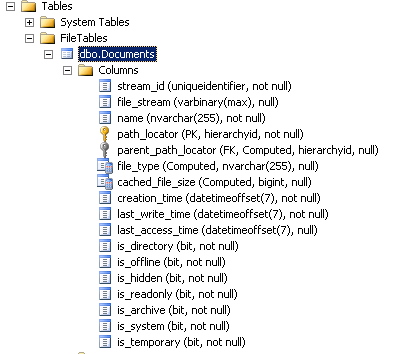
Let’s do a demo of creating a File Table, store files under it and modify it. In this demo we will first create a file table, will store a Rich Text Document and will try to modify the same.
Demo
1. Create a database which contains file stream
--Create database with filestream
CREATE DATABASE SQLServerFILETABLEDEMO
 ON PRIMARY (name=SQLServerFILETABLEDEMO_FILE,
 filename='C:\SQL_Data\SQLServerFILETABLEDEMO\SQLServerFILETABLEDEMO_Data.mdf'),
 Filegroup SQLStorage contains filestream (name=SQLServerFILETABLEDEMO_FILE_FS,
 filename='C:\SQL_Data\SQLServerFILETABLEDEMO\SQLServerFILETABLEDEMO_FS')
with filestream (
 non_transacted_access=full,
 directory_name='SQLServerFILETABLE DEMO')
The non_transacted_access command will grant win32 permissions.
This will create the database with file stream and we can proceed with creating a File Table now
2. Create a table as File Table
--Create table as filetable
 CREATE TABLE Documents as FILETABLE
 with(filetable_directory='Document Library')
This will create the file table with a predefined structure as mentioned earlier.
Now, I am going to say something really cool!!!
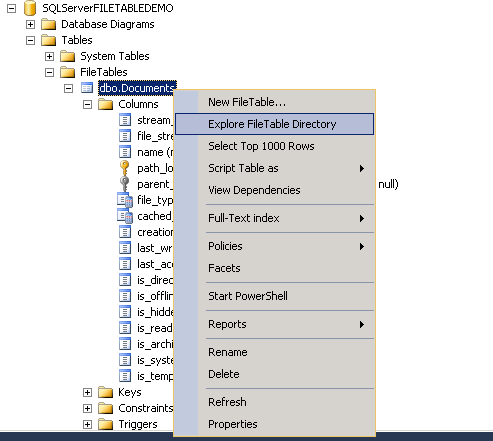
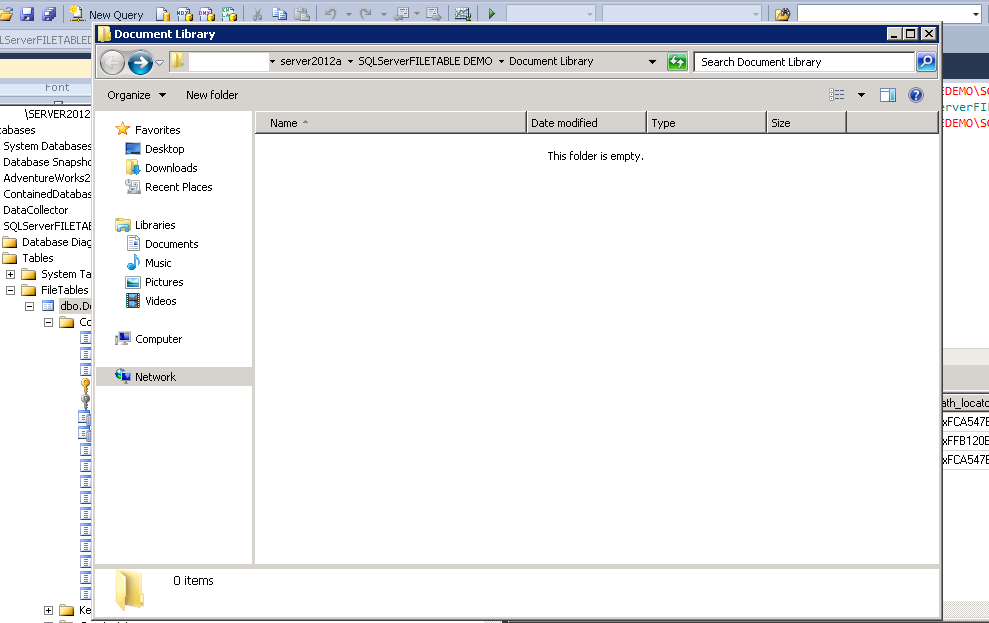
If you right click the File Table documents and choose ‘Explore FileTable Directory’,then you will get windows based directory view and here you can drag and drop your files.
Yes, I said drag and drop! All the contents you drag and drop is actually getting stored in the database. You can directly modify the file from the directory level with lot of ease. You can view the file, play video, listen music and do everything you need.
3. Lets now create 2 folders for this directory
--Create folders
INSERT INTO Documents(name,is_directory)
 values('Whitepapers',1)
 INSERT INTO Documents(name,is_directory)
 values('Multimedia',1)
If you refresh the directory window you will get the folders which we just created.
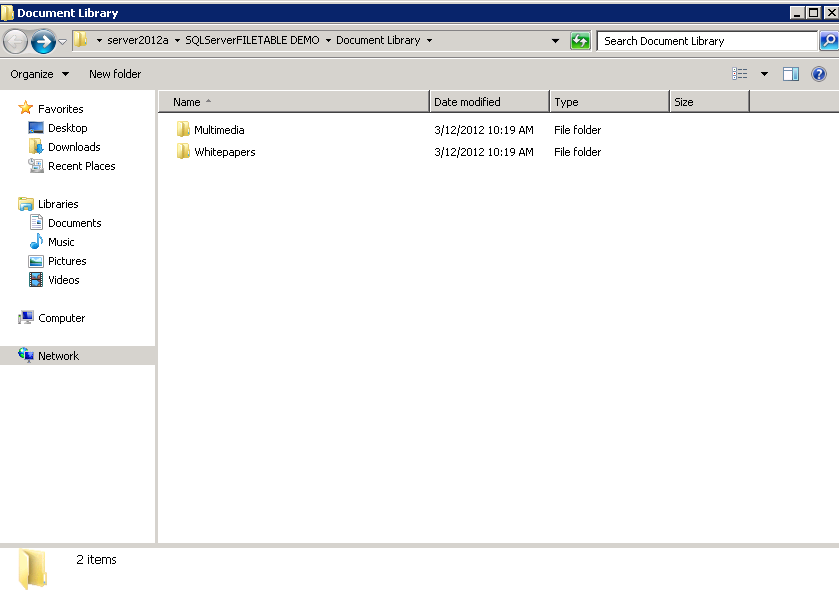
4. We will now drag and drop a word pad document(.RTF) file to this directory and under folder WhitePapers folder.
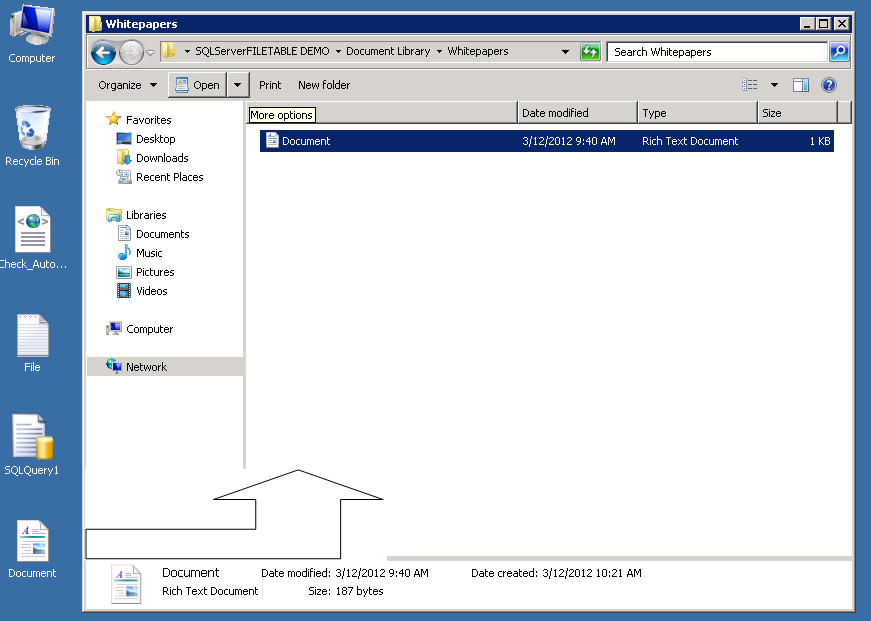
5. If we query the table now, we can see that the file is now available in the database.
--Query the table to check the file details
 select * from Documents

6. We will drag and drop one more file which can be a .SQL file now and see if the database reflects the changes
--Query the table to check the file details
 select * from Documents

7. We can directly open the files in the directory and work on it.
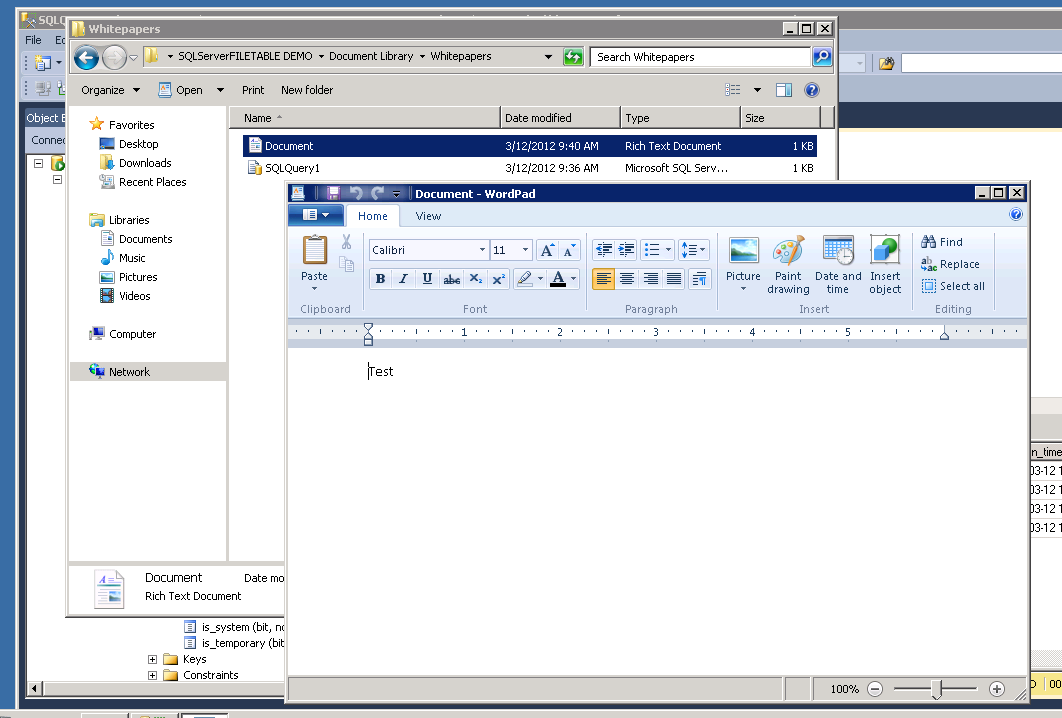
8. We can modify the file from the directory level and can see the changes reflecting in the database. For the demo purpose I will rename the document.rtf to FileTableisCool.RTF from directory level.

We can check the table to see the changes.
--Query the table to check the file details
 select * from Documents

Conclusion
File Table is a great feature for those who are dealing with File Stream already and it’s a great way for users to manage and work with documents, video, music, pictures etc.
I hope you had fun working/testing File Table and thanks for reading.


 Cloud & SQLSailor
Leave a reply to ccchai Cancel reply